VLC Media Player Shortcut Keys pdf free download: VLC Media Player Shortcut Keys (Printable Copy & Free Download)
VLC Media Player is one of the most powerful and flexible media players available. Known for its ability to play almost any audio or video format without additional codecs, it becomes even more efficient when controlled through shortcut keys. Mastering these shortcuts saves time, improves productivity, and enhances the overall viewing and listening experience.
Why Use VLC Shortcut Keys?
Shortcut keys transform VLC from a basic player into a highly responsive tool. Instead of navigating menus repeatedly, actions become instant.
Key benefits include:
- Faster playback control without using a mouse
- Smooth multitasking while watching videos
- Better accessibility for power users and educators
- Ideal for creating printable cheat sheets for classrooms or labs
Most Important VLC Shortcut Keys (Quick Access)
These are the keys used most frequently:
- Space → Play / Pause
- F → Fullscreen mode
- Esc → Exit fullscreen
- Ctrl + Up / Down → Volume up / down
- M → Mute / Unmute
- Left / Right Arrow → Jump backward / forward (short step)
- Shift + Left / Right → Jump medium step
- Ctrl + Left / Right → Jump long step
These alone cover most everyday needs.
Playback Control Shortcuts
Efficient playback control is the foundation of VLC usage.
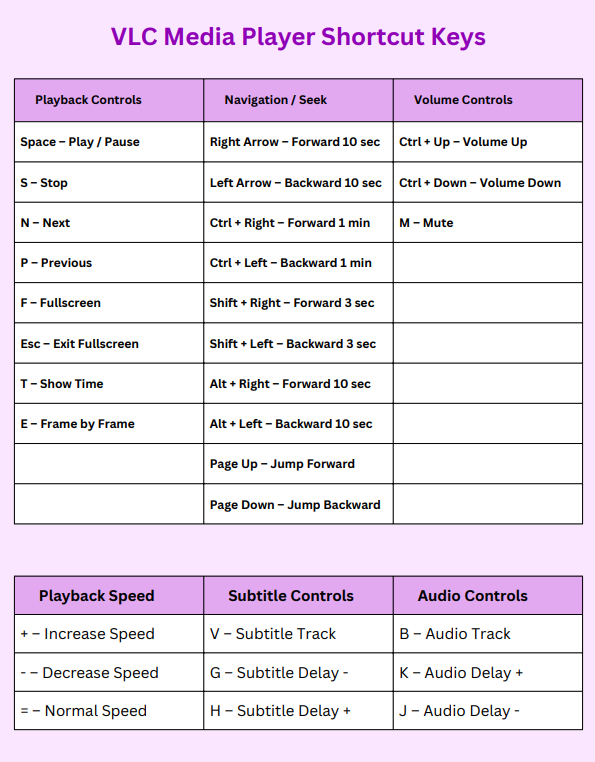
- Space → Play / Pause
- S → Stop playback
- + / – → Increase / decrease playback speed
- = → Reset playback speed to normal
- N / P → Next / Previous media
- T → Show elapsed time
- E → Frame-by-frame playback
These controls are especially useful for educators, video editors, and students analyzing content.
Navigation & Seeking Shortcuts
Precise navigation allows quick movement within videos.
- Shift + Left / Right → Jump 3 seconds
- Alt + Left / Right → Jump 10 seconds
- Ctrl + Left / Right → Jump 1 minute
- Ctrl + Alt + Left / Right → Jump 5 minutes
- Home / End → Start / End of media
This layered navigation system gives both fine and large control over playback.
Audio & Volume Control Shortcuts
Sound adjustments can be made instantly without opening settings.
- Ctrl + Up / Down → Increase / decrease volume
- M → Mute / Unmute
- Shift + A → Cycle audio tracks
- K / J → Increase / decrease audio delay
These are essential when syncing audio or switching languages.
Subtitle Control Shortcuts
VLC provides strong subtitle support with quick adjustments.
- V → Enable / disable subtitles
- Shift + V → Change subtitle track
- G / H → Adjust subtitle delay
Perfect for multilingual content and subtitle syncing.
Video & Display Shortcuts
Control how videos appear on screen.
- F → Toggle fullscreen
- Z → Change zoom mode
- A → Change aspect ratio
- C → Cycle through crop modes
- Ctrl + H → Hide / show controls
These options help optimize viewing across different screen sizes.
Playlist & Media Management
Handling multiple files becomes easier with shortcuts.
- Ctrl + L → Open playlist
- Ctrl + O → Open file
- Ctrl + D → Open disc
- Ctrl + N → Open network stream
- Ctrl + F → Search in playlist
Useful for managing large media collections or classroom presentations.
Advanced & Lesser-Known Shortcuts
These are often overlooked but extremely powerful:
- Ctrl + E → Open extended settings
- Ctrl + P → Preferences
- Ctrl + R → Convert / Save
- Ctrl + T → Go to specific time
- Shift + S → Take snapshot
Snapshots are especially useful for creating educational content and thumbnails.
Printable Copy: How to Use Effectively
A printable shortcut sheet helps with faster memorization and daily use. The most effective layout includes:
- Grouping shortcuts by function (Playback, Audio, Video, etc.)
- Using large, readable fonts
- Highlighting commonly used keys
- Keeping it within 1–2 pages for quick reference
Such sheets are ideal for classrooms, computer labs, and personal desks.
Free Download Tip
To create a clean printable version:
- Copy the structured sections into a document editor
- Format into tables with 2–3 columns
- Export as PDF for easy sharing and printing
This approach ensures a professional, reusable shortcut reference.
Pro Tips for Mastery
- Start by memorizing 5–10 daily-use shortcuts
- Gradually add navigation and subtitle controls
- Practice while watching videos to build muscle memory
- Keep a printed copy nearby for quick lookup
Within a few days, most actions become automatic.
VLC Media Player stands out not just for compatibility but for control. Shortcut keys unlock its full potential, making media playback faster, smoother, and more efficient. Whether used for entertainment, teaching, or content creation, mastering these shortcuts significantly improves workflow.
A well-organized printable copy ensures these powerful commands are always within reach, turning VLC into a truly professional-grade media tool.