Tally Prime Shortcut Keys A to Z pdf free download: Tally Prime shortcut keys A to Z provide a complete set of keyboard commands that allow users to navigate, record entries, and generate reports faster without relying on a mouse. For accountants, students, and business owners, mastering these shortcuts significantly improves speed, accuracy, and productivity in daily accounting tasks.
A well-structured Tally Prime shortcut keys A to Z PDF serves as a quick reference sheet, helping users instantly recall commands such as voucher creation, report navigation, and configuration settings. Whether working on billing, GST reports, or ledger management, shortcut keys streamline the entire workflow.
What Are Tally Prime Shortcut Keys?
Tally Prime shortcut keys are predefined keyboard combinations used to perform specific actions within the software. These include:
- Creating and modifying vouchers
- Navigating between reports
- Accessing company features and configurations
- Managing inventory and accounting entries
Instead of multiple clicks, a single key combination can execute complex actions, making the software more efficient and user-friendly.
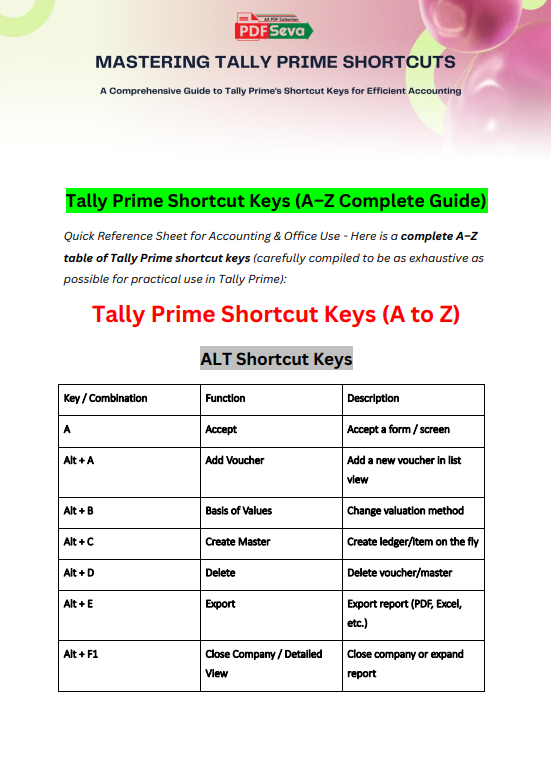
Tally Prime Shortcut Keys (A–Z)
| Key / Combination | Function | Description |
|---|---|---|
| A | Accept | Accept a form / screen |
| Alt + A | Add Voucher | Add a new voucher in list view |
| Alt + B | Basis of Values | Change valuation method |
| Alt + C | Create Master | Create ledger/item on the fly |
| Alt + D | Delete | Delete voucher/master |
| Alt + E | Export | Export report (PDF, Excel, etc.) |
| Alt + F1 | Close Company / Detailed View | Close company or expand report |
| Alt + F2 | Change Period | Change reporting period |
| Alt + F3 | Company Info | Select/Create/Shutdown company |
| Alt + F4 | Contra Voucher | Open Contra voucher |
| Alt + F5 | Payment Voucher | Open Payment voucher |
| Alt + F6 | Receipt Voucher | Open Receipt voucher |
| Alt + F7 | Journal Voucher | Open Journal voucher |
| Alt + F8 | Sales Voucher | Open Sales voucher |
| Alt + F9 | Purchase Voucher | Open Purchase voucher |
| Alt + F10 | Reversing Journal | Open Reversing Journal |
| Alt + F11 | Features | Company features settings |
| Alt + F12 | Configure | Configuration settings |
| Alt + G | Go To | Universal search & navigation |
| Alt + H | Share | Share/Print/Export options |
| Alt + I | Insert Voucher | Insert voucher in list |
| Alt + J | Statutory Reports | GST & statutory reports |
| Alt + K | Company Menu | Switch company options |
| Alt + L | Logout Company | Log out user |
| Alt + M | Send report via email | |
| Alt + N | Auto Column | Add column in reports |
| Alt + O | Import | Import data |
| Alt + P | Print report | |
| Alt + Q | Quit | Exit current screen |
| Alt + R | Remove Line | Remove entry line |
| Alt + S | Stock Journal | Open Stock Journal |
| Alt + U | Restore | Restore company data |
| Alt + V | Voucher Type | Change voucher type |
| Alt + W | Reconcile | Bank reconciliation |
| Alt + X | Cancel Voucher | Cancel voucher |
| Alt + Y | Company Data | Company-related options |
| Alt + Z | Exchange Data | Data exchange utilities |
Function Keys (F1–F12)
| Key | Function | Description |
|---|---|---|
| F1 | Select Company | Switch company |
| F2 | Date | Change date |
| F3 | Company | Company selection |
| F4 | Contra | Contra voucher |
| F5 | Payment | Payment voucher |
| F6 | Receipt | Receipt voucher |
| F7 | Journal | Journal voucher |
| F8 | Sales | Sales voucher |
| F9 | Purchase | Purchase voucher |
| F10 | Other Vouchers | Memorandum, Reversing |
| F11 | Features | Enable/disable features |
| F12 | Configure | Configuration |
Ctrl Shortcut Keys
| Key Combination | Function | Description |
|---|---|---|
| Ctrl + A | Accept | Save voucher/master |
| Ctrl + B | Basis of Values | Change calculation basis |
| Ctrl + C | Copy | Copy text/data |
| Ctrl + D | Delete | Delete line |
| Ctrl + E | Export | Export report |
| Ctrl + F | Find | Search within report |
| Ctrl + G | Go To | Open navigation |
| Ctrl + H | Change Mode | Toggle view |
| Ctrl + I | Insert Line | Insert entry |
| Ctrl + J | Exception Report | View exceptions |
| Ctrl + L | Ledger | Open ledger |
| Ctrl + M | Send via email | |
| Ctrl + N | Calculator | Open calculator panel |
| Ctrl + O | Import | Import data |
| Ctrl + P | Print report | |
| Ctrl + Q | Quit | Exit screen |
| Ctrl + R | Repeat Narration | Repeat last narration |
| Ctrl + S | Save | Save data |
| Ctrl + U | Restore | Restore data |
| Ctrl + V | Paste | Paste copied data |
| Ctrl + W | Reconcile | Bank reconciliation |
| Ctrl + X | Cancel | Cancel entry |
| Ctrl + Y | Company Data | Company options |
| Ctrl + Z | Undo | Undo last action |
Special & Navigation Keys
| Key | Function | Description |
|---|---|---|
| Enter | Accept | Move forward / accept |
| Esc | Cancel | Exit current screen |
| Space | Select | Select item |
| Backspace | Back | Go to previous screen |
| Page Up | Previous Voucher | View previous entry |
| Page Down | Next Voucher | View next entry |
| Ctrl + Enter | Alter Master | Edit selected ledger/item |
| Alt + Enter | View Details | Expand report |
| Shift + Enter | Drill Down | Open detailed report |
Voucher-Specific Quick Keys
| Key | Function |
|---|---|
| Ctrl + F8 | Credit Note |
| Ctrl + F9 | Debit Note |
| Ctrl + F10 | Memorandum Voucher |
| Ctrl + F6 | Receipt (special modes) |
| Ctrl + F5 | Payment (special modes) |
Important Notes (Very Useful)
- Ctrl + Enter → Direct edit without leaving screen
- Alt + G (Go To) → Most powerful shortcut in Tally Prime
- Ctrl + N (Calculator Panel) → Works like a mini calculator anywhere
- Alt + C → Saves huge time while creating ledgers/items instantly
Why Use Tally Prime Shortcut Keys?
Using shortcut keys is not just about convenience; it directly impacts efficiency and accuracy.
Key Benefits
- Faster data entry and reduced manual effort
- Improved workflow in high-volume accounting tasks
- Reduced dependency on mouse navigation
- Better focus and fewer interruptions
- Essential for professional accountants and Tally operators
Practical Usage in Daily Accounting
Shortcut keys are heavily used in real-world accounting scenarios:
- Creating invoices quickly using Alt + F8
- Recording payments using F5 or Alt + F5
- Instantly creating ledgers during entry with Alt + C
- Switching between companies using F1
- Generating reports and exporting data using Alt + E
In busy accounting environments, these shortcuts can save hours of repetitive work.
Tally Prime shortcut keys A to Z form the backbone of efficient accounting operations. By reducing manual navigation and enabling faster execution of tasks, they enhance productivity across all levels—from beginners to experienced professionals. A well-organized shortcut keys PDF acts as a reliable companion, ensuring quick access to essential commands whenever needed.